> ## Documentation Index
> Fetch the complete documentation index at: https://docs.letters.app/llms.txt
> Use this file to discover all available pages before exploring further.
# Your First Letter
> How to create your first letter using sources.
## Creating a New Letter
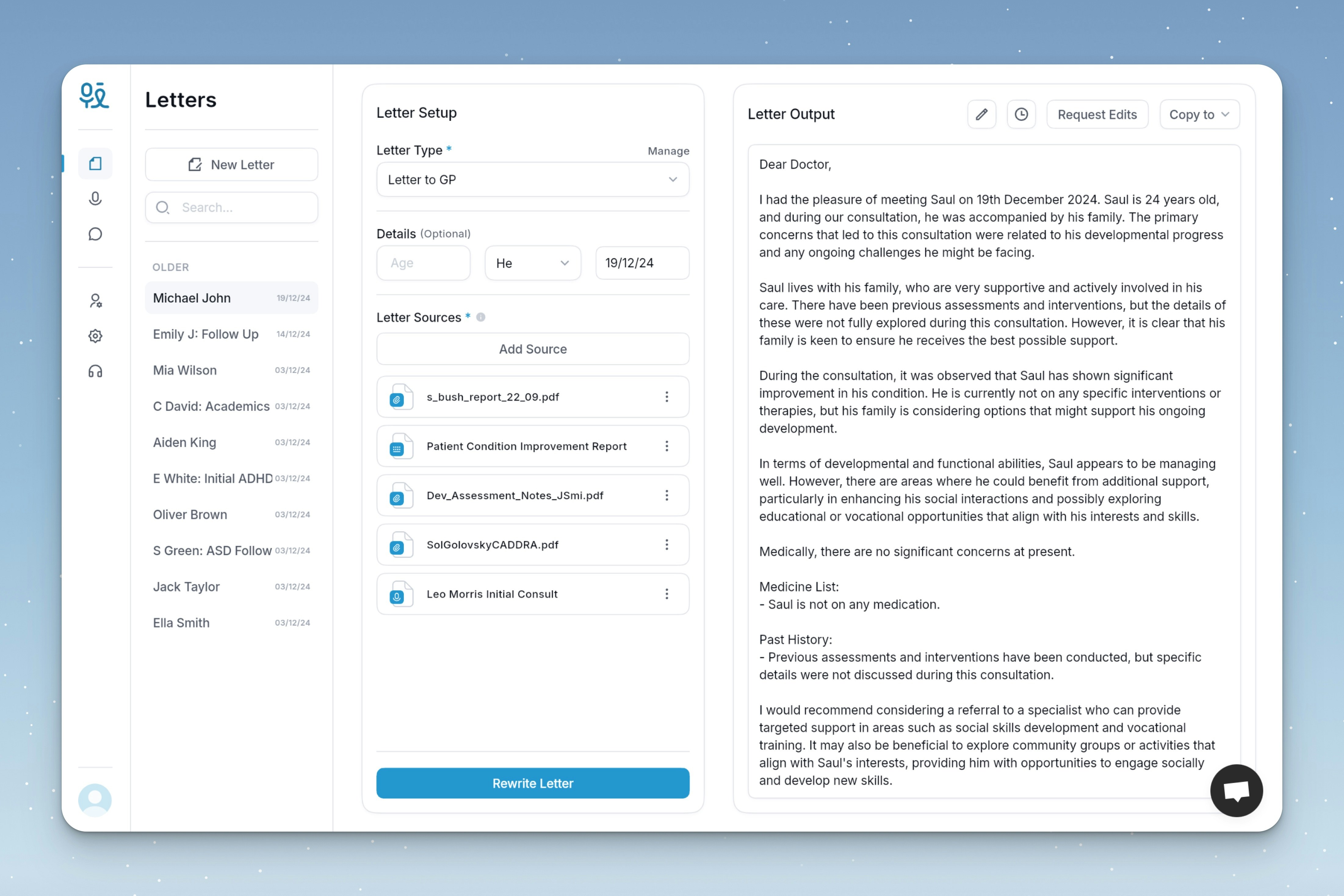
To create your first letter, Click **New Letter** in the Letters pane of the homepage, and enter your Patient's Name. The letters creation page is divided into two main sections, Setup and Output.
## Getting Started
All letters must include a Letter Type
Create your first Letter Type by clicking the **Create Letter Type** button.
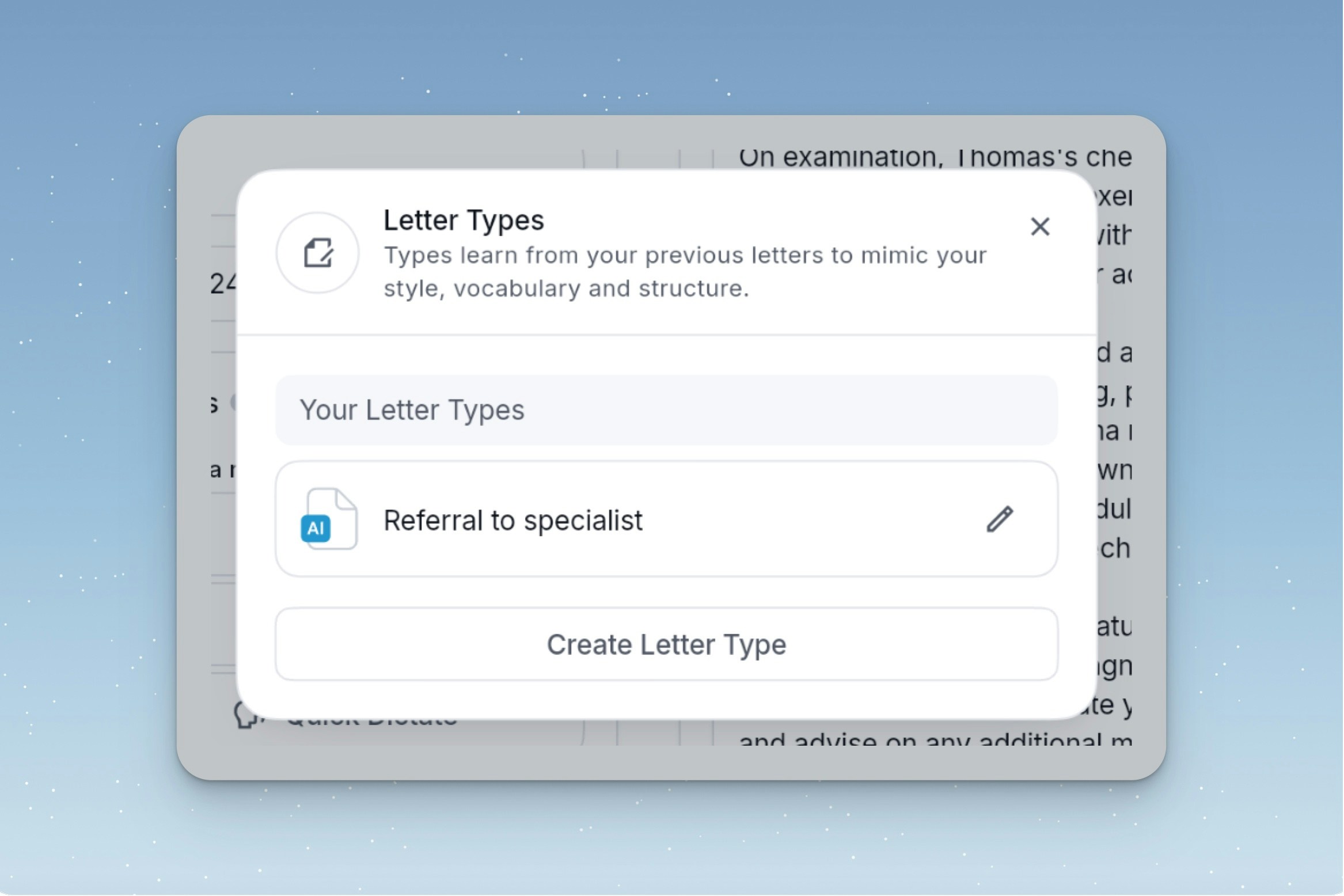 Give the type a name, and upload a minimum of **3 sample letters** in the upload window. Samples letters help to train the AI on your writing style, uploading more letters may improve the letter output.
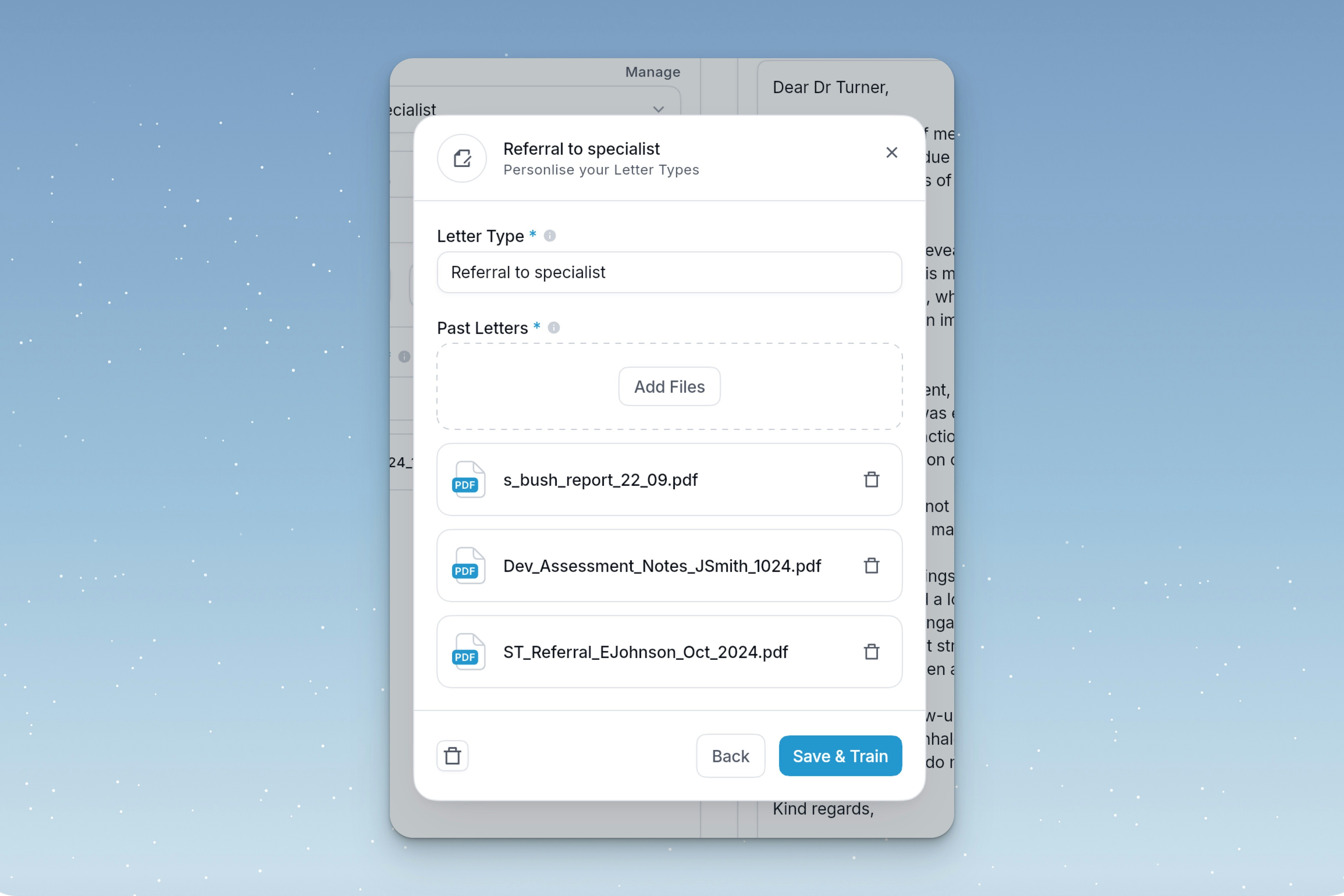 Once processed, the your Letter Type can be selected from the Letter Type dropdown menu.
Optionally, include relevant patient details including **age**, **pronoun** and the **date**. If you don't include these, they will be inferred from your sources, if available.
Sources can include quick dictate, text, files and transcriptions. Once you have added your sources you can click on them to rename or view.
Once processed, the your Letter Type can be selected from the Letter Type dropdown menu.
Optionally, include relevant patient details including **age**, **pronoun** and the **date**. If you don't include these, they will be inferred from your sources, if available.
Sources can include quick dictate, text, files and transcriptions. Once you have added your sources you can click on them to rename or view.
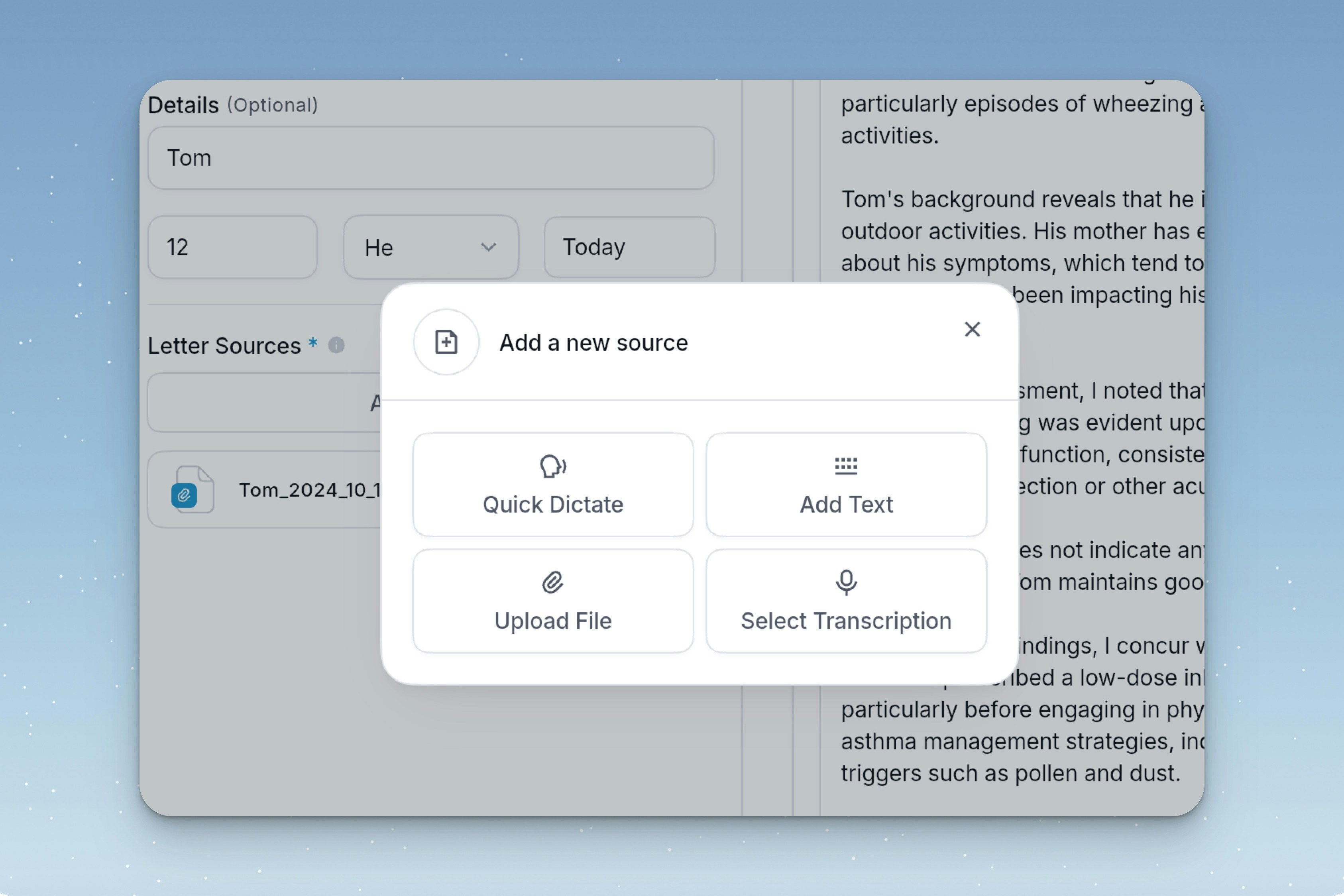 Dictate your voice directly as a letter source.
Type or paste text from a document or your medical records.
Files can be uploaded directly by clicking the **Browse Files** button, or by dragging & dropping one into the window. PDF, Word files and images are accepted. **We support Scans & Handwrittng.**
Dictate your voice directly as a letter source.
Type or paste text from a document or your medical records.
Files can be uploaded directly by clicking the **Browse Files** button, or by dragging & dropping one into the window. PDF, Word files and images are accepted. **We support Scans & Handwrittng.**
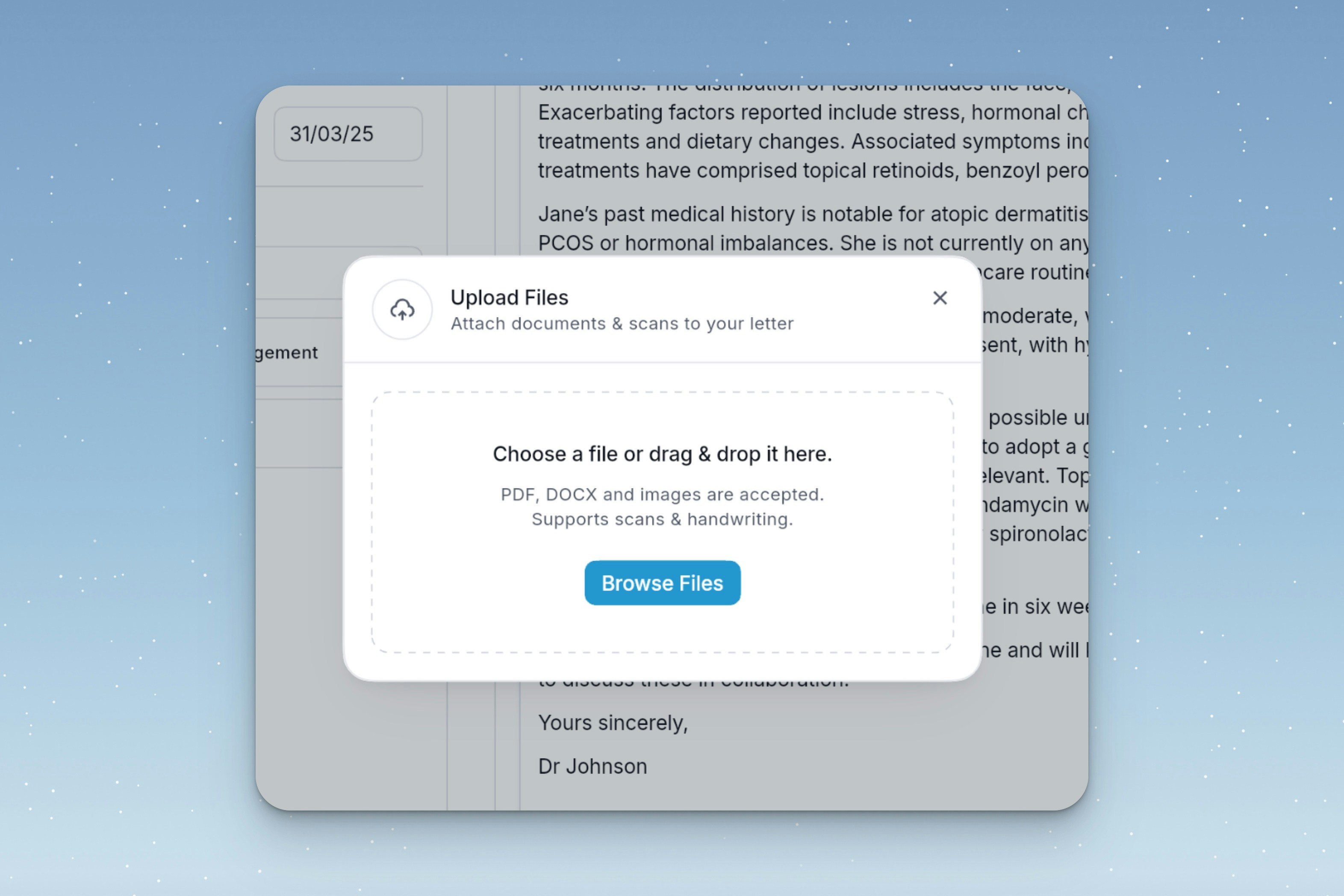 Our AI will recognise scanned or handwritten content for visual complexity and text elements.
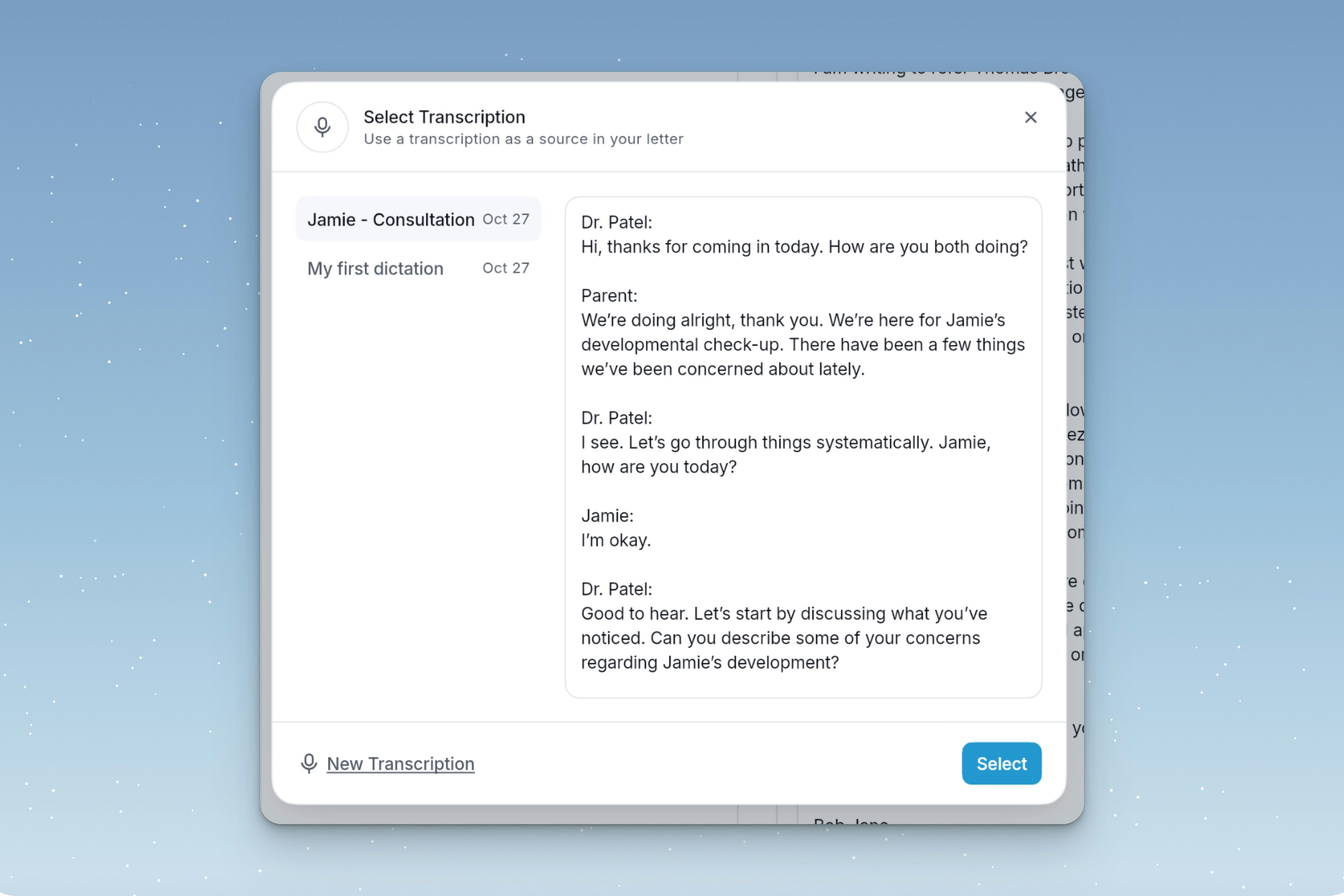
Your past transcriptions in Letters can be attached as a source. You can also start & attach a new transcription by clicking **New Transcription**.
Our AI will recognise scanned or handwritten content for visual complexity and text elements.
Your past transcriptions in Letters can be attached as a source. You can also start & attach a new transcription by clicking **New Transcription**.
 Your letter can be written by clicking **Write Letter**.
Letters generates your custom letter. Options to customise your letter are shown below.
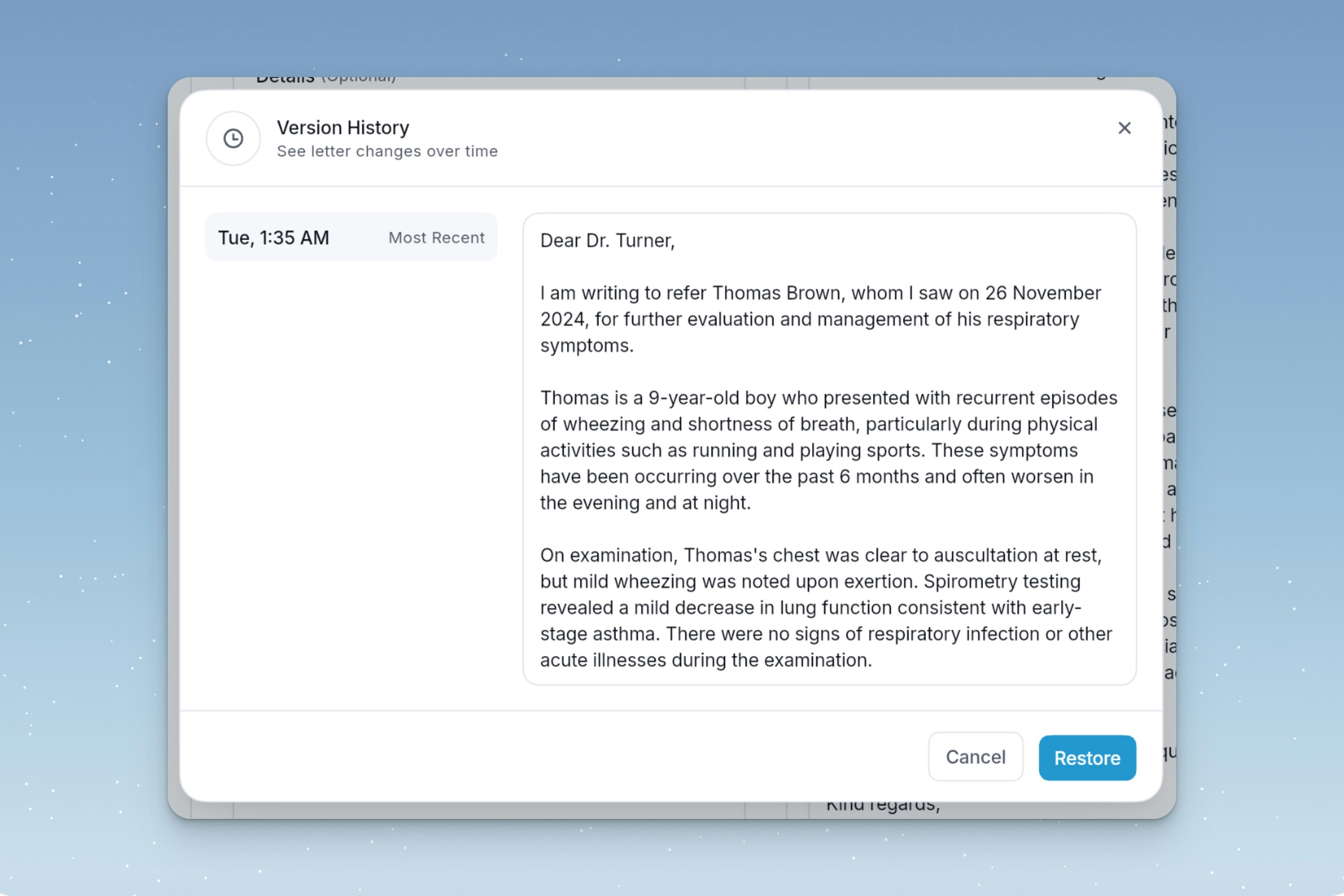
Version history stores all letter modifications by time and date. A previous version can be restored at any time by clicking **Restore**.
Your letter can be written by clicking **Write Letter**.
Letters generates your custom letter. Options to customise your letter are shown below.
Version history stores all letter modifications by time and date. A previous version can be restored at any time by clicking **Restore**.
 Clicking **Request Edits** allows you to describe the edits you require, and the letter will be rewritten. Letters can remember your feedback for future letters by selecting Save for Future.
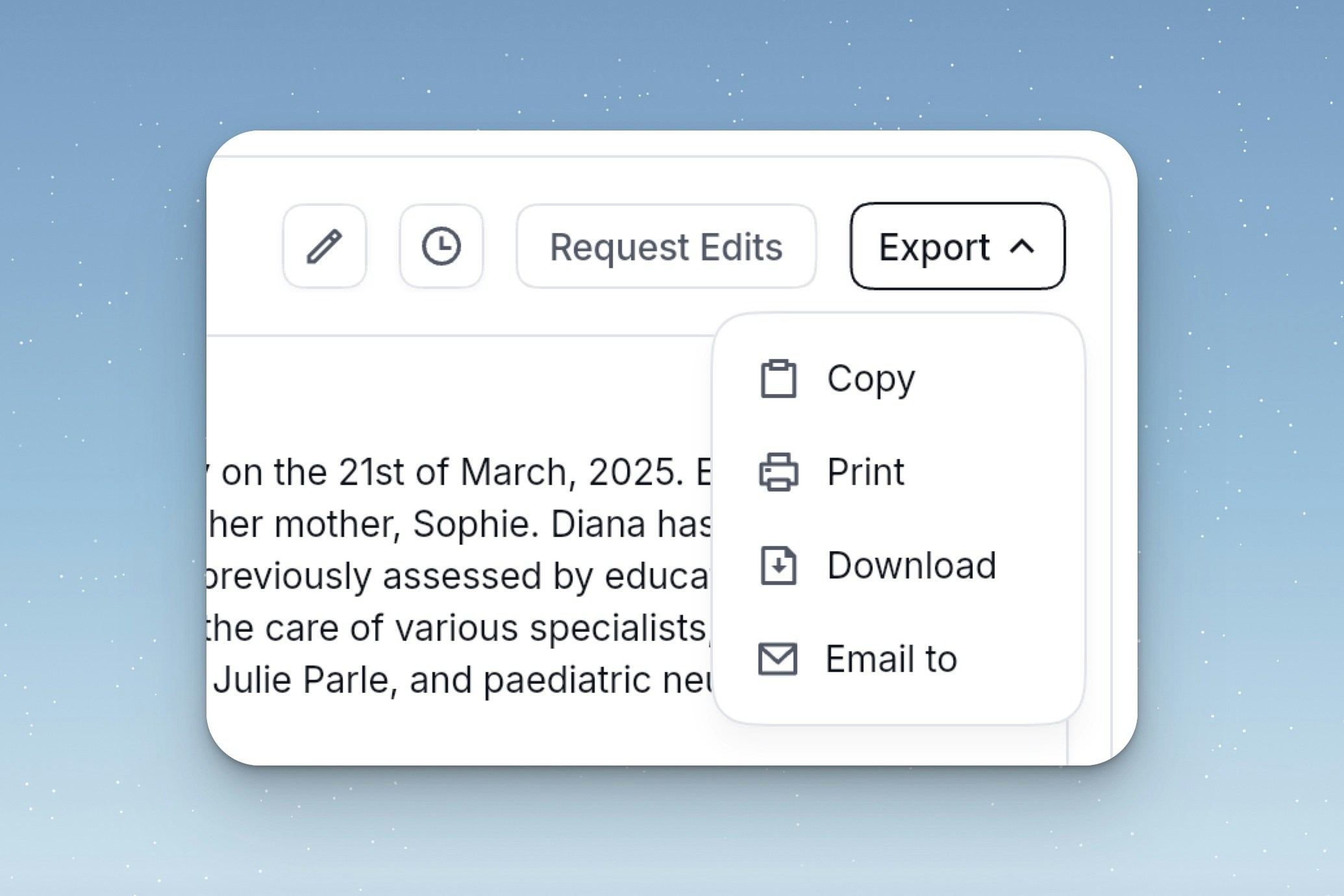
Once your Letter is complete, it copied for use in other software by clicking **Export**.
**Copy plain text** will copy your letter to your clipboard.
**Print** print your letter.
**Download** download a formatated copy of your letter.
**Email to** forwards your letter to the specified recipients.
Clicking **Request Edits** allows you to describe the edits you require, and the letter will be rewritten. Letters can remember your feedback for future letters by selecting Save for Future.
Once your Letter is complete, it copied for use in other software by clicking **Export**.
**Copy plain text** will copy your letter to your clipboard.
**Print** print your letter.
**Download** download a formatated copy of your letter.
**Email to** forwards your letter to the specified recipients.